
Install ViewUpAI on Windows
Open the downloaded ViewUpAI app and install it through to the end. If Windows shows a blue “Windows protected your PC” screen, use the steps in that section, then continue. If it does not, keep going until the last step.
1Click the app to install
Download the Windows installer from this site if you have not already. The file name looks like ViewUpAI-1.0.4-windows.exe.
Open your Downloads folder and double-click the ViewUpAI app to start installation.
If you see the blue screen
Windows may ask with a blue window titled Windows protected your PC. Follow the steps below only when that screen appears.
If you do not see the blue screen, skip this section and continue to the last step.
Click More info
The window says Microsoft Defender SmartScreen prevented an unrecognised app from starting, and the only button is Don’t run.
Click the More info link under that message. Do not click Don’t run, and do not close the window.
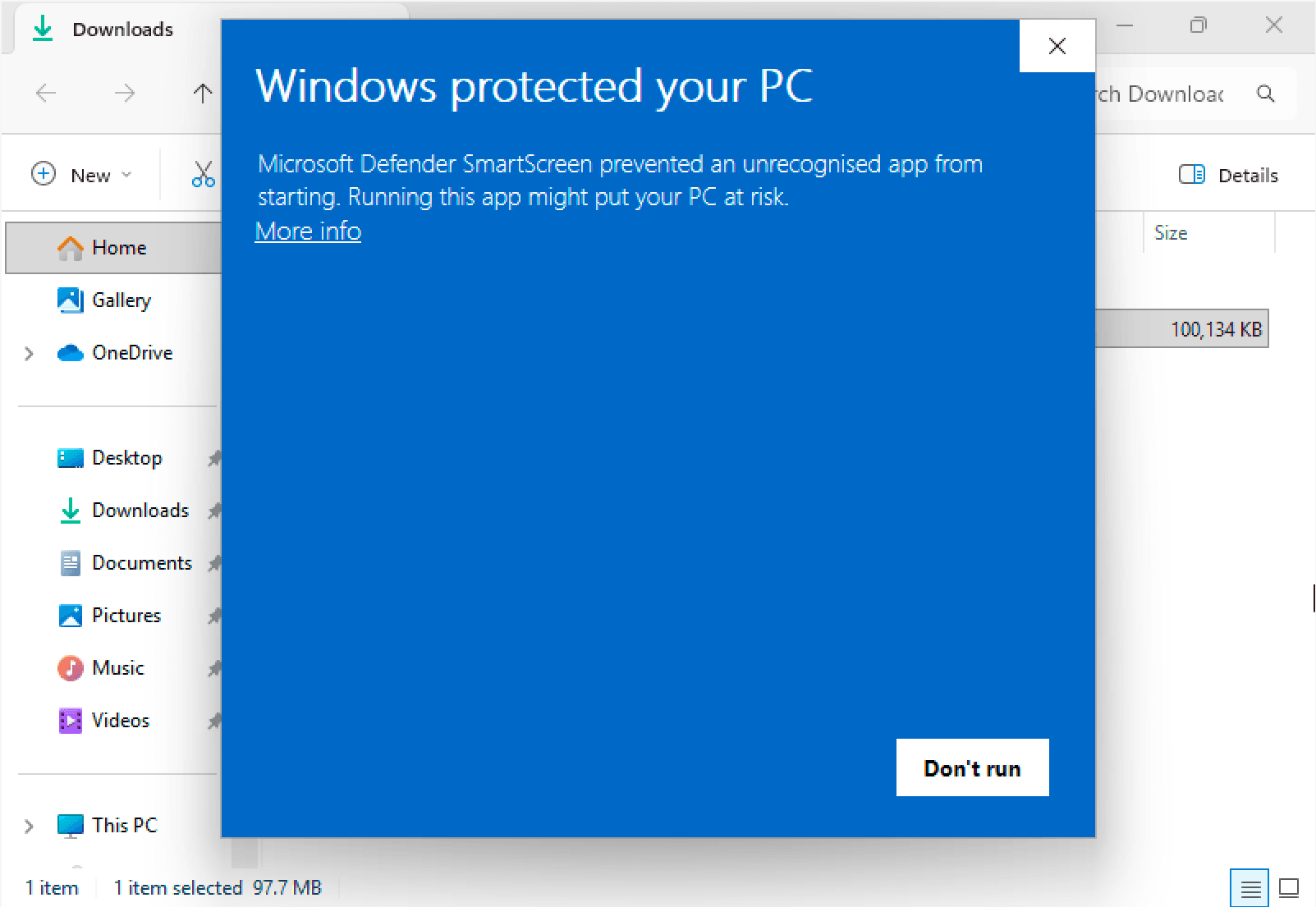
On the blue screen, click More info. Click Run anyway
After More info, the same window shows the application name and Publisher: Unknown publisher.
Click Run anyway. The installer will start. Then continue to the last step.
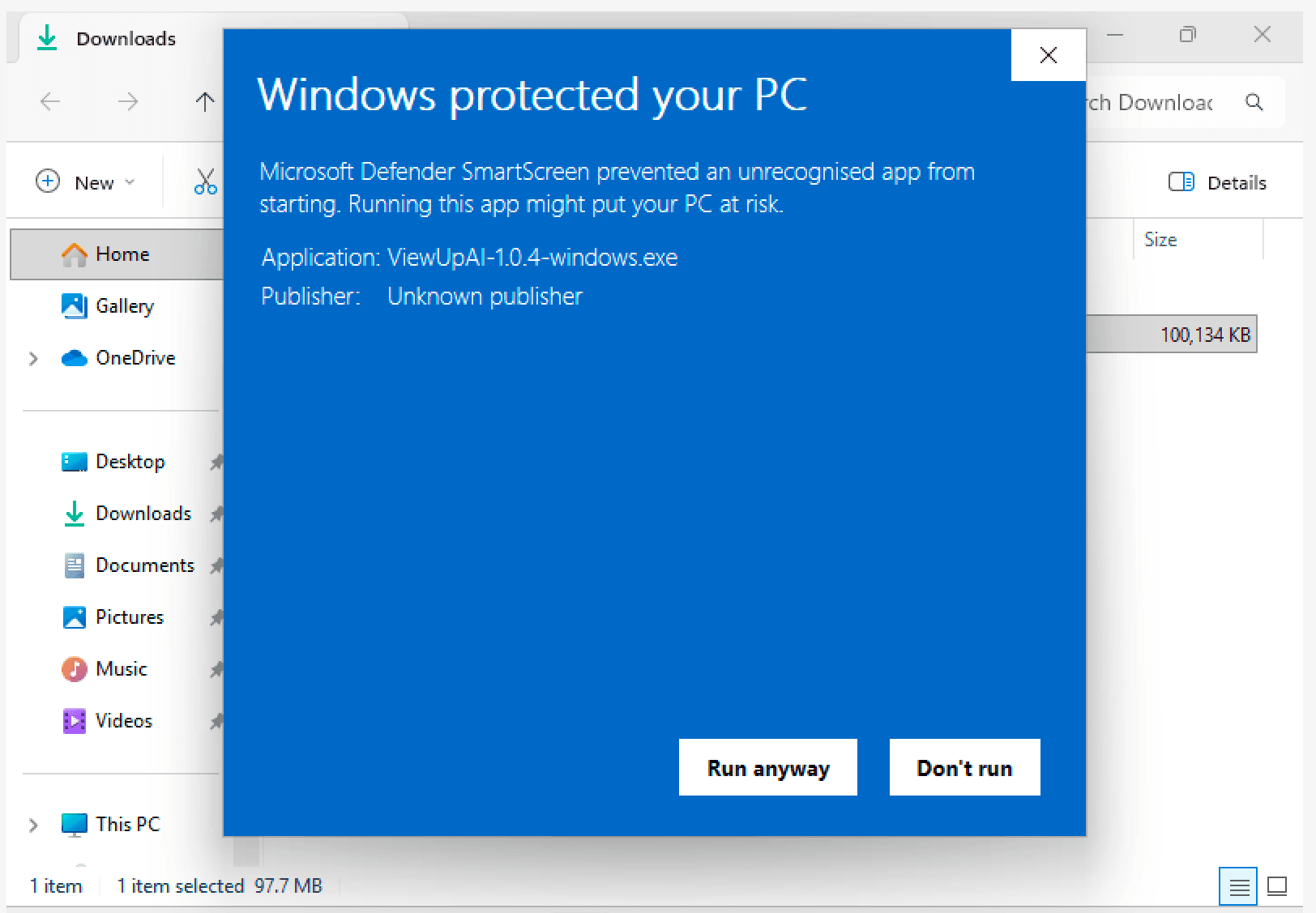
Click Run anyway. 2Finish and sign in
Whether or not the blue screen appeared, follow the installer until you see Completing ViewUpAI Setup and the line “ViewUpAI has been installed on your computer.”
Leave Run ViewUpAI checked if you want the app to open, then click Finish. Sign in with the same account you use on the website.
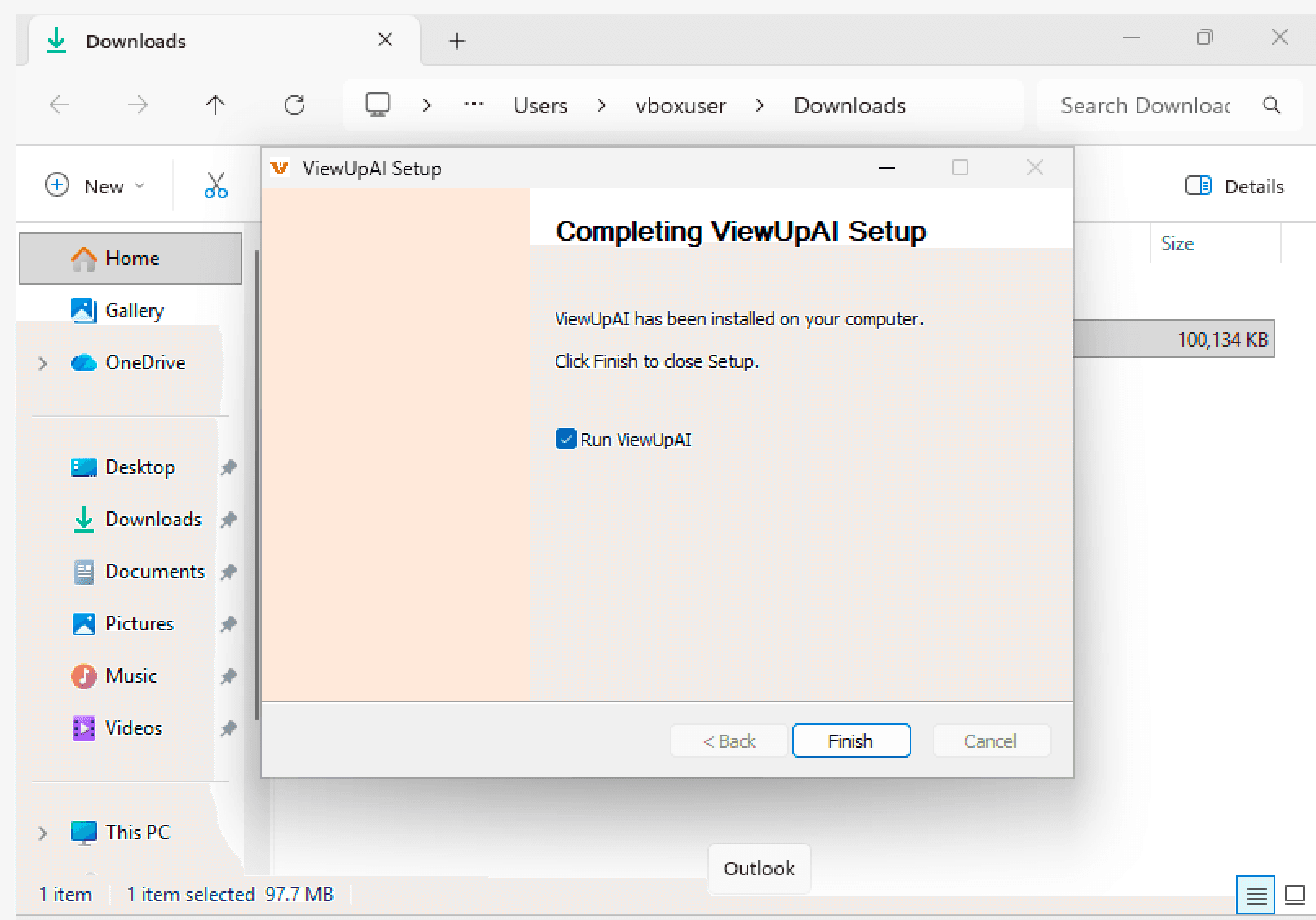
Click Finish to close setup. Leave Run ViewUpAI checked to open the app.