
Install ViewUpAI on macOS
Open the downloaded ViewUpAI app and install it through to the end. If macOS says the app is protected or cannot be verified, use the steps in that section, then continue. If it does not, keep going until the last step.
1Click the app to install
Download the Mac disk image from this site if you have not already. Choose Apple Silicon (M1 or later) or Intel. The file name ends in .dmg.
Open the disk image, drag ViewUpAI into Applications, then click ViewUpAI to start it. Open it from Applications, not from the disk image window.
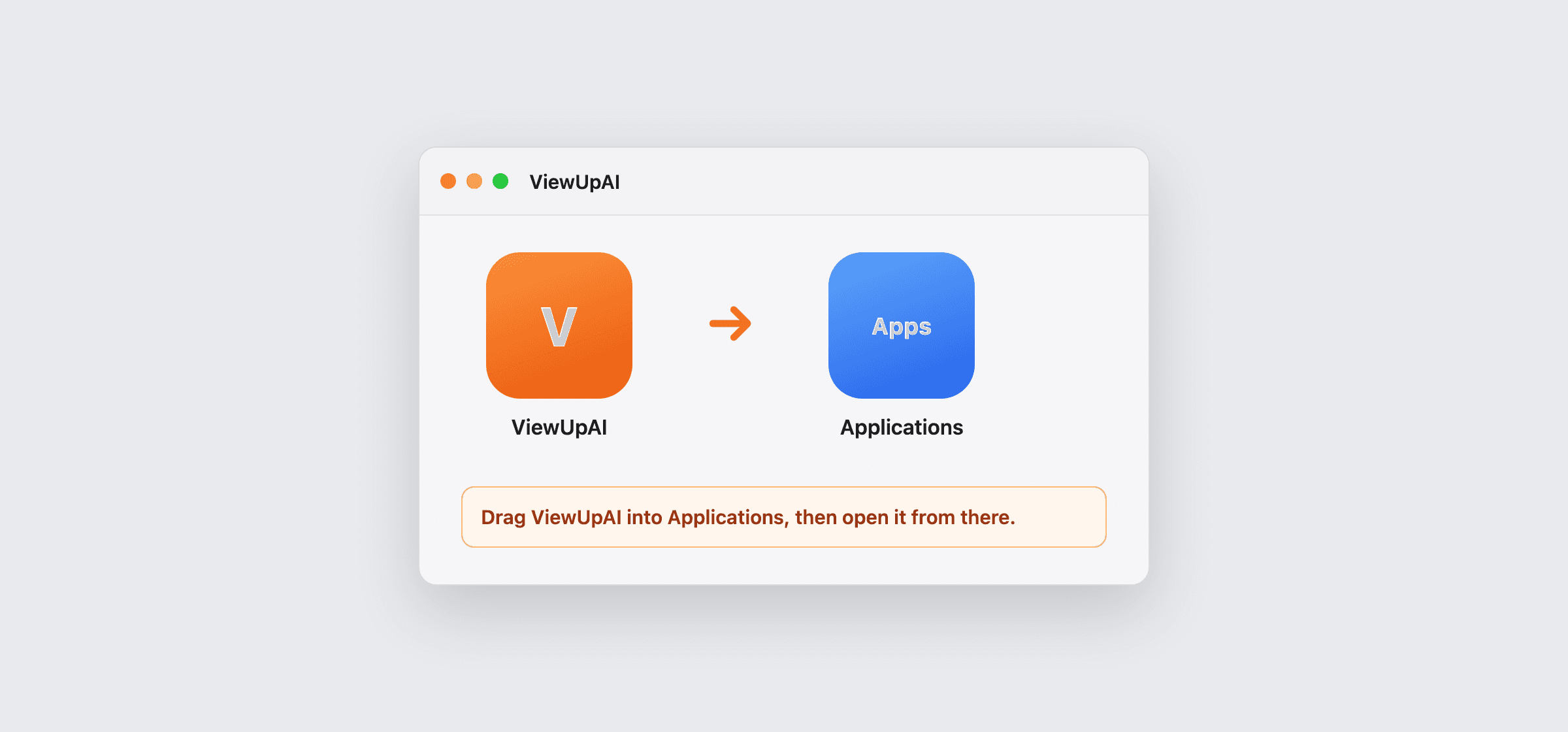
Drag ViewUpAI into Applications, then open it from there. If you see a protected message
macOS may say “ViewUpAI” cannot be opened, that Apple could not verify it is free of malware, or that it was blocked to protect your Mac. Follow only the section that matches your version. To check, open the Apple menu and choose About This Mac.
If you do not see that message, skip this section and continue to the last step.
Dismiss the warning
The buttons are Done, Cancel, or Move to Trash. Click Done or Cancel. Do not move the app to Trash.
If the message says the app is damaged, leave it in Applications and continue with the Privacy & Security steps for your version.
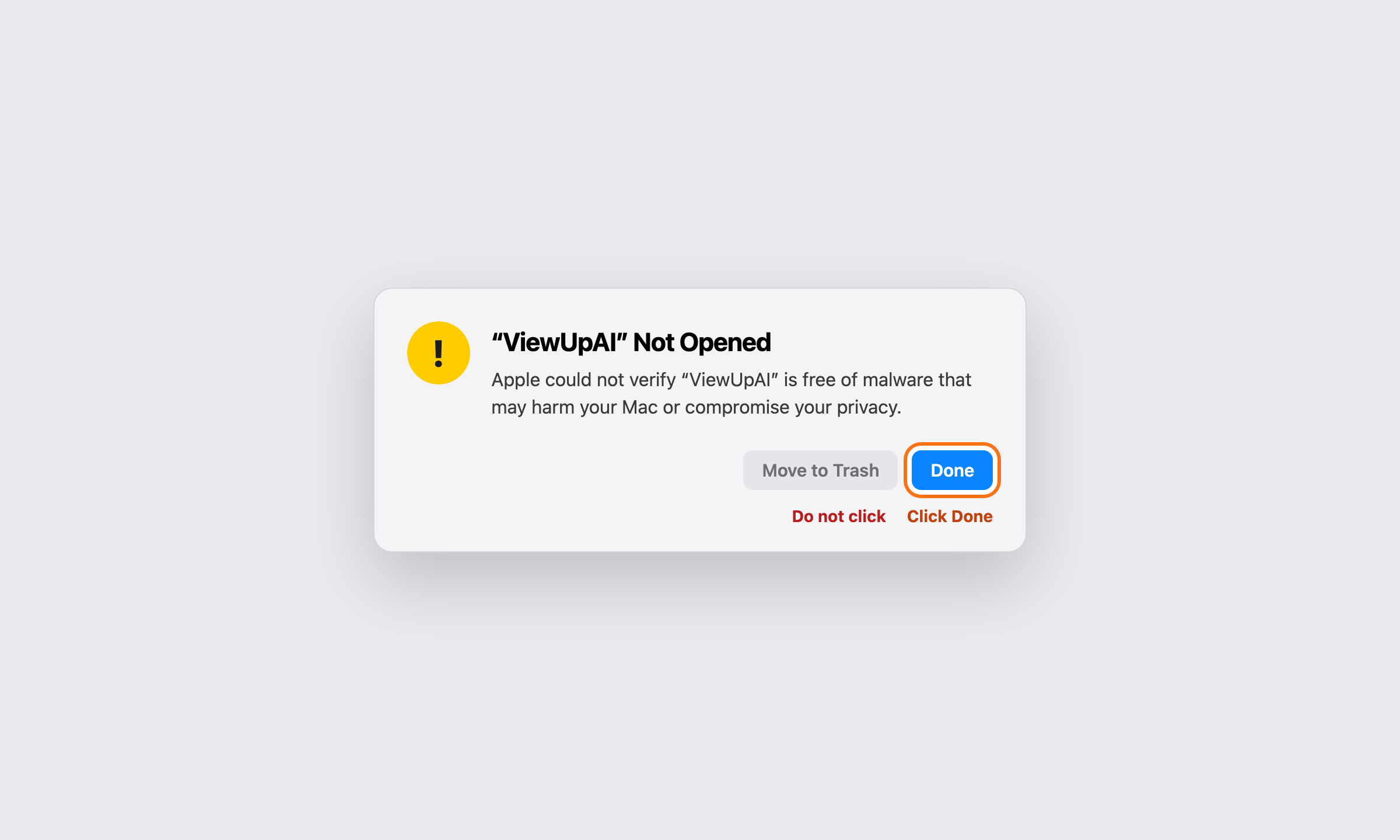
Click Done or Cancel. Do not click Move to Trash. macOS Sequoia 15 and later, including Tahoe
On these versions, Control-clicking the app and choosing Open does not get past the warning. Use Privacy & Security instead.
Open the Apple menu, choose System Settings, then Privacy & Security in the sidebar. Scroll the sidebar if you do not see it.
Scroll down to Security. You should see that ViewUpAI was blocked. Click Open Anyway. If the button there is Open, click it, then click Open Anyway.
Open Anyway stays available for about an hour after you try to open the app. If it is missing, double-click ViewUpAI again, click Done, then return to Privacy & Security right away.
Enter your Mac password or use Touch ID, then click OK or Open. You only need to do this once.
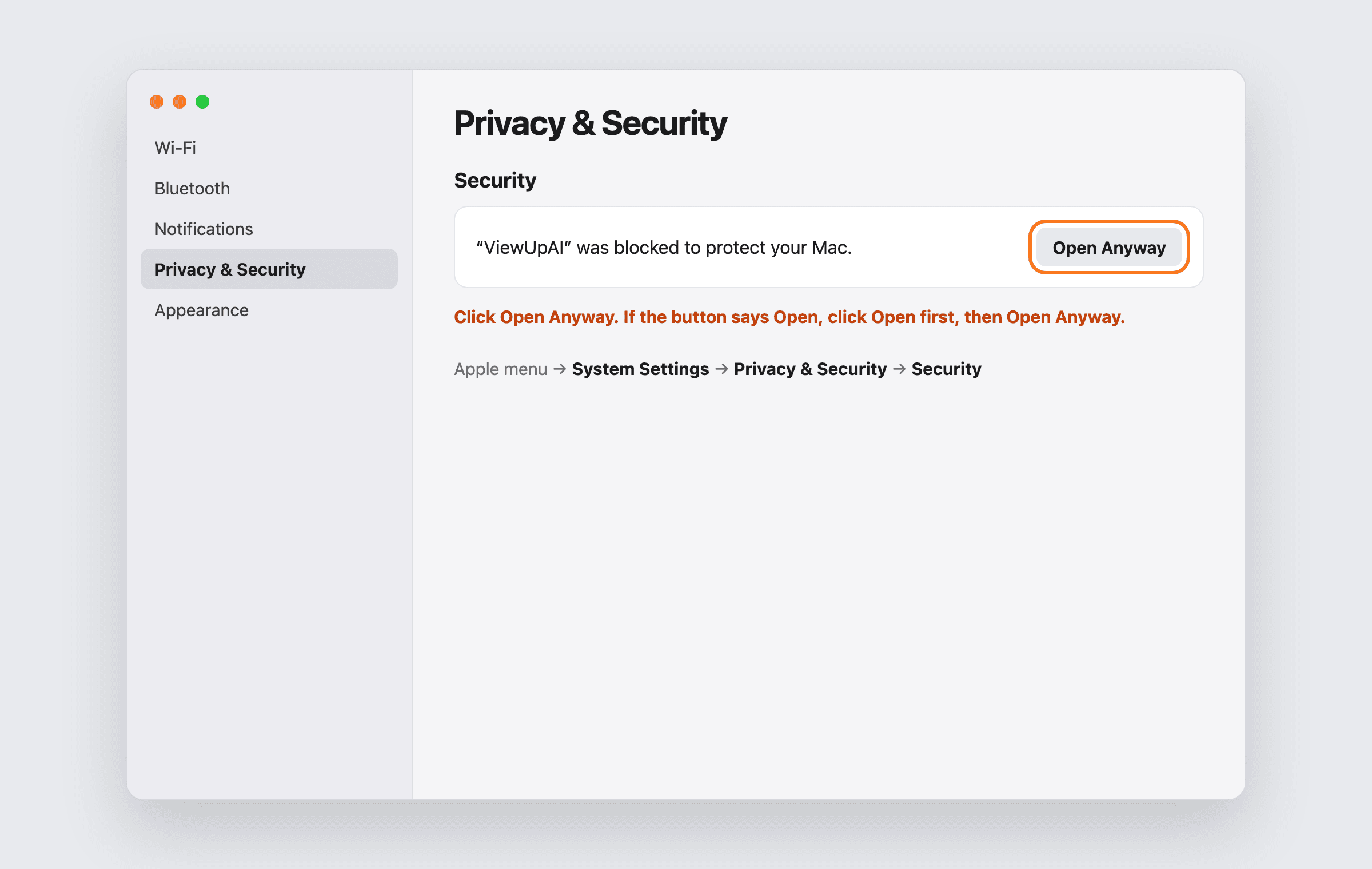
In Privacy & Security, under Security, click Open Anyway. macOS Ventura 13 and Sonoma 14
Open the Apple menu, choose System Settings, then Privacy & Security. Scroll to Security and click Open Anyway next to ViewUpAI.
Enter your Mac password or use Touch ID. If another dialog appears, click Open.
You can also Control-click ViewUpAI in Applications, choose Open, then click Open in the dialog. You only need to do this once.
Ventura and Sonoma use the same Privacy & Security screen. Click Open Anyway. macOS Monterey 12 and earlier
Open the Apple menu, choose System Preferences, then Security & Privacy. Open the General tab.
Click the lock and enter your password. Click Open Anyway next to ViewUpAI, then click Open if macOS asks again.
You can also Control-click ViewUpAI in Applications, choose Open, then click Open in the dialog. You only need to do this once.
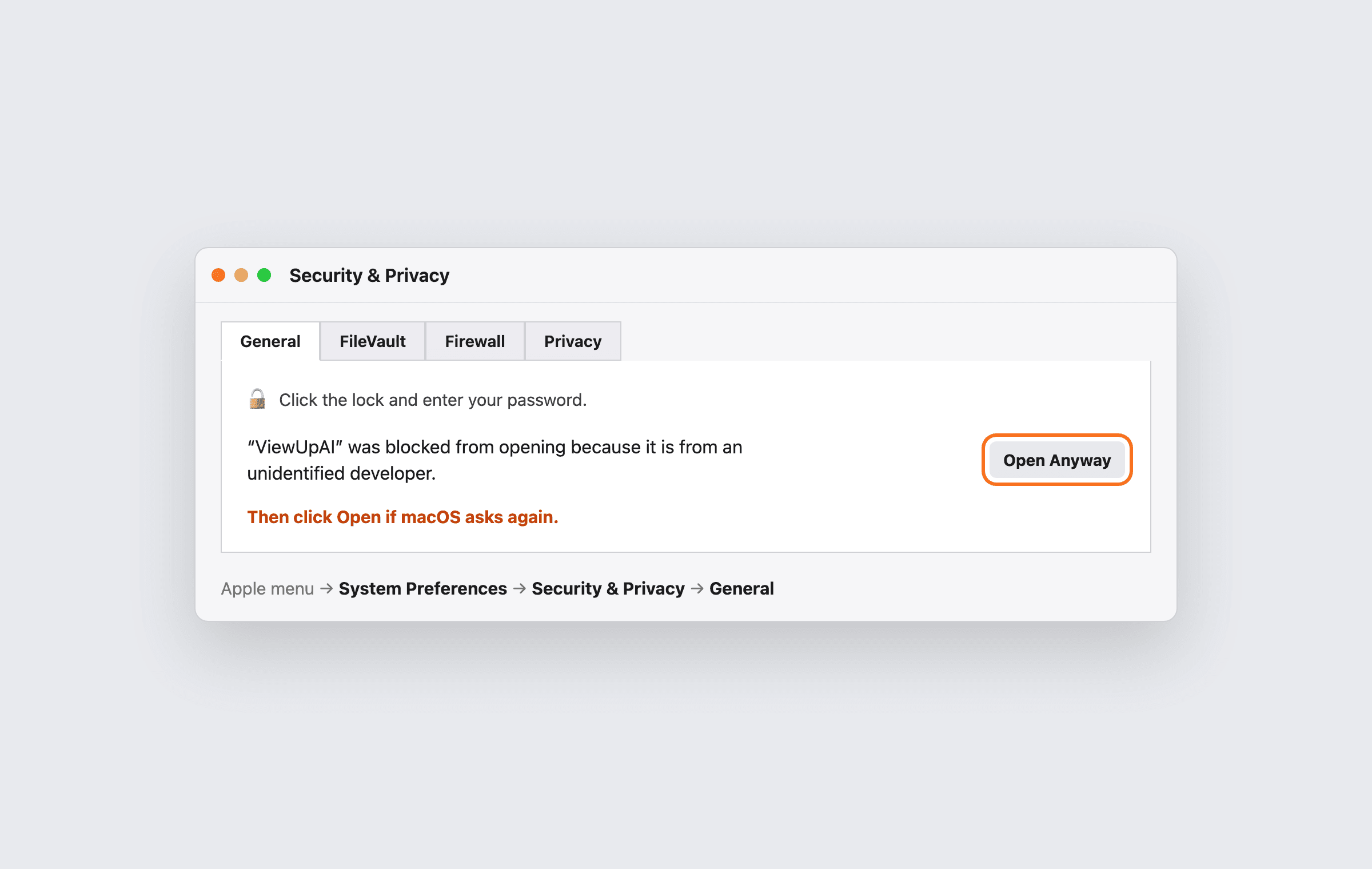
On Monterey and earlier, unlock Security & Privacy, then click Open Anyway. 2Finish and sign in
Whether or not the protected message appeared, open ViewUpAI from the Applications folder.
Sign in with the same account you use on the website.